Passenger Screens
Cabby's passenger screens turn any browser-equipped device — a tablet propped on the glareshield, a TV behind the cockpit, a second monitor on your desk — into a passenger-grade display for your flight. Everything is delivered from the cloud, so once Cabby is running on your simulator PC, any device on the internet can join in.
Each flight gets its own home screen at:
https://flyingart.dev/cabby/screen/flight/{flightId}
You don't have to remember the ID — open the boarding tile in the desktop app and use the "Open in Browser" button. The URL it opens is the same one you can share with another device.
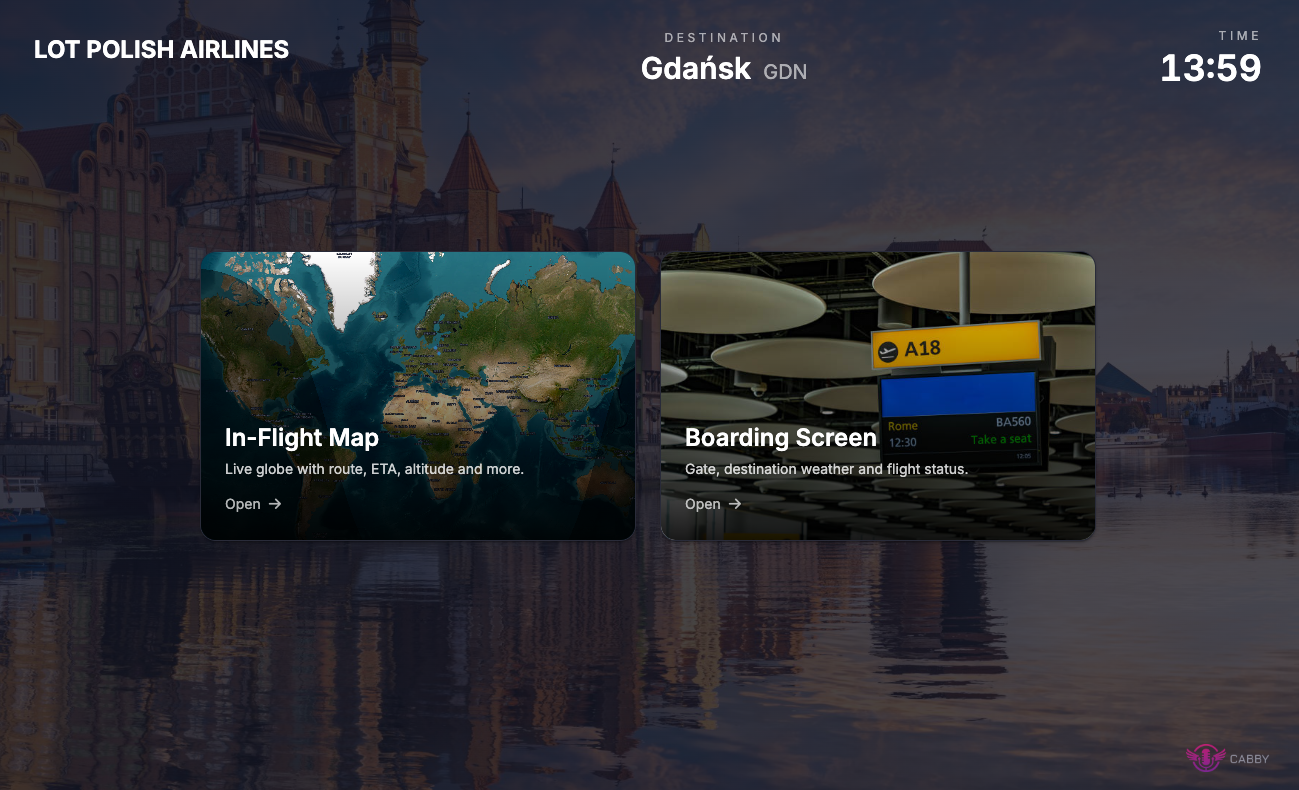
One URL that always shows your latest flight
Flight IDs change every session, so a flight URL is great for sharing during a single flight but inconvenient if you want to leave a tablet running on the wall and forget about it. For that, use the per-user form:
https://flyingart.dev/cabby/screen/user/{yourUserId}
This URL never changes. It always points at your most recent flight — when you start a new one, the screen automatically picks it up; between flights it shows a "Waiting for an active flight…" placeholder. Bookmark it once on a tablet or smart-display in your sim room and it'll just work for every future session.
Your user id is shown in the desktop app under Settings → Account. The page is the same hub as the per-flight URL, so everything below applies to both.
What's on the Home Screen
The home screen is intentionally low-information so it works as ambient signage. From left to right, top bar:
- Airline logo for the current flight (or the airline name as a text fallback).
- Destination city plus the IATA / ICAO code.
- Simulator time at the origin airport.
In the background, a photo of the destination city sets the mood, dimmed so the foreground stays readable.
In the middle, two cards let the passenger pick where to go next:
- In-Flight Map — the live globe with the route and aircraft. Best during cruise.
- Boarding Screen — gate, weather, and boarding status. Best at the gate.
More cards (news, entertainment) will land here as we add them.
Closing One Screen, Returning to the Hub
Inside the IFE map and the boarding screen, a small × button in the top-right corner takes you back to this home screen. From there you can switch to the other surface without reloading.
When the Flight Isn't Active
If the flight has ended, the URL is unknown, or the desktop app loses connection to the simulator, the screen shows a centered Cabby logo with a one-line message:
- Flight has ended — your scheduled flight has reached its end state.
- Could not connect to Cabby — the desktop app is offline or unreachable. Check that Cabby is still running.
- Loading… — first-time connect; the screen will populate within a second or two.
Setup Tips
- Same flight on multiple devices is fine. Open the URL on as many screens as you like — they share the same connection back to Cabby and update in lock-step.
- Bookmark the URL on a tablet. For one-off sharing, re-open the per-flight URL from the desktop tile each session. For a permanent display in your sim room, bookmark the per-user URL once — it survives flight changes.
- Keep-screen-on. On iPads / Android tablets, enable Guided Access or kiosk mode so the screen doesn't sleep mid-cruise.
- Network. Any internet connection works — the device doesn't need to be on the same LAN as your simulator PC.
The two surfaces — boarding and IFE — are documented next.