In-Flight Map
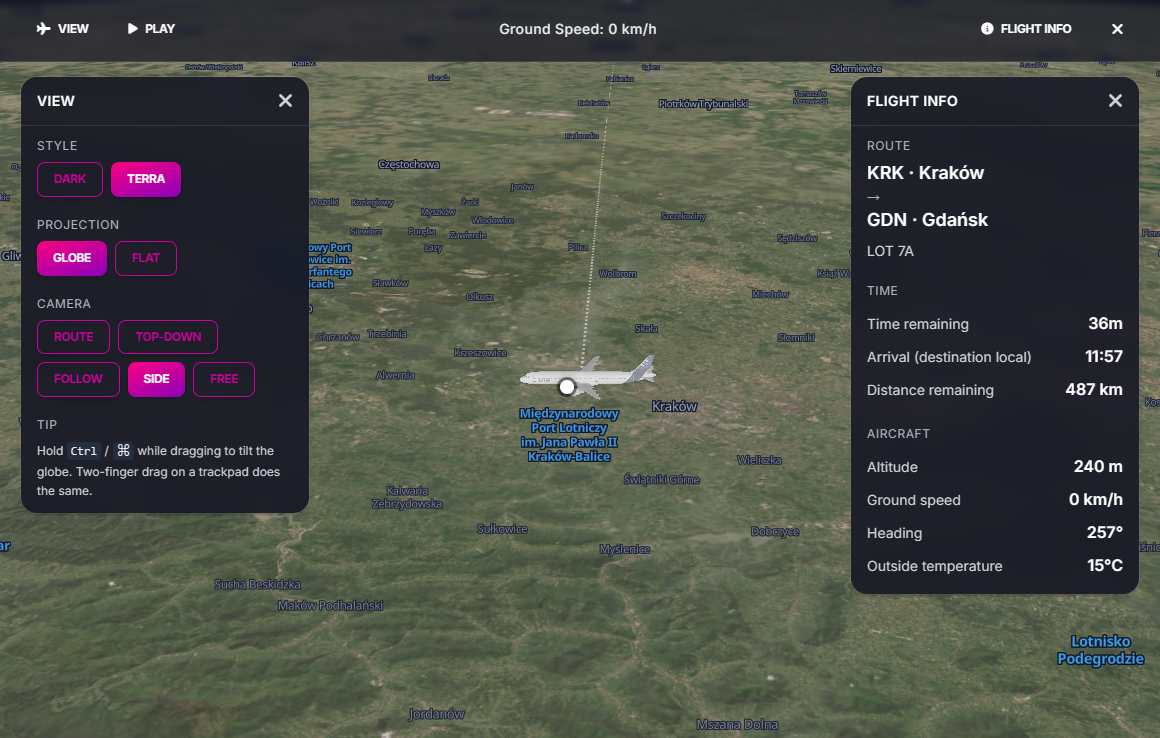
The in-flight map (IFE for "in-flight entertainment") is the moving-map display you'd see on a long-haul seatback screen — a live globe with your route, your aircraft, and the data passengers actually care about: where we are, when we land, how high, how fast.
It's the second of Cabby's passenger screens, alongside the Boarding Screen. Same idea: open it on a tablet or TV, leave it running for the cruise.
https://flyingart.dev/cabby/screen/flight/{flightId}/ife
https://flyingart.dev/cabby/screen/user/{yourUserId}/ife
Reach it from the Passenger Screens hub by tapping the In-Flight Map card. The user/{yourUserId} form always tracks your latest flight — useful for a permanent display, see Passenger Screens.
What's on the Map
- The globe. A 3D earth that rotates as the camera moves. Falls back gracefully to a flat map if the device's WebGL stack doesn't support globe projection.
- Your aircraft. A purple plane icon, oriented to your current heading, with a soft glow so it's visible against any background.
- The route. A great-circle line from origin to destination, hugging the globe surface.
- Origin and destination. Two purple dots with halos at each end of the route.
- Day / night terminator. A subtle dark overlay on the night side of the planet, recomputed from the simulator's UTC clock — so when you fly into dusk, the screen does too.
Top Bar
A thin bar across the top exposes everything you need without covering the map:
| Control | What it does |
|---|---|
| View | Opens the View drawer (style + camera). |
| Play / Pause | Auto-cycles the camera through Route → Top-down → Follow every 15 seconds. |
| Ticker (center) | Rotates through ETA, distance remaining, arrival time, altitude, ground speed, OAT — one line every 5 seconds. |
| Flight Info | Opens the Flight Info drawer with the full numbers. |
| × | Returns to the Passenger Screens hub. |

View Drawer
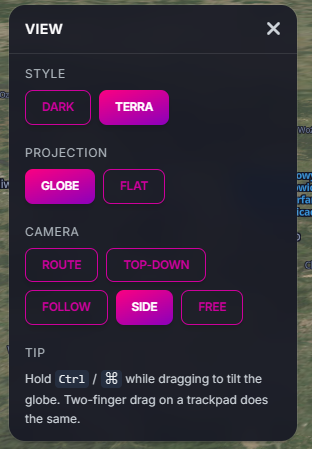
Open with the View button on the left. Two sections:
Style
- Dark — vector-tile night map. Easy on the eyes, lower bandwidth.
- Terra — satellite imagery. Looks gorgeous over coastlines and mountain ranges.
Camera
- Route — frames the full great-circle so origin, destination, and aircraft are all in view. Great for context.
- Top-down — straight down on the aircraft. Best for following ground features.
- Follow — tilted, behind-and-above the aircraft, rotated to heading. The "passenger window" view.
- Free — disable auto-camera so you can pan, zoom, and tilt by hand.
The camera mode auto-flips to Free the moment you grab the map manually, so you don't have to click anything to start exploring. Hit Route / Top-down / Follow again to lock back on.
Tip. Hold ⌘ (Mac) or Ctrl (Windows) while dragging — or use a two-finger drag on a trackpad — to tilt the globe.
Flight Info Drawer
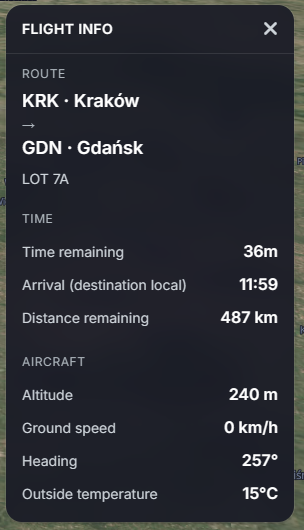
Open with Flight Info on the right. Three sections:
- Route — origin and destination cities with their IATA / ICAO codes, plus the flight number.
- Time — time remaining, arrival time in destination-local, distance remaining.
- Aircraft — altitude, ground speed, heading, outside air temperature.
All values come from the simulator and update live as Cabby pushes new state.
Play Mode
Click Play in the top bar to start the auto-cycle. The camera walks through Route → Top-down → Follow, holding each for 15 seconds, and starts over.
It's the right setting if you want to leave the screen on during a long cruise — the view changes often enough to stay interesting without being jarring. Click Pause (or grab the map) to stop.
External Display Setup
Same playbook as the boarding screen:
- Open the IFE URL in any browser on any internet-connected device.
- Push it to fullscreen (F11 on desktops) and disable sleep on tablets.
- The data flows through the cloud, so the device does not need to share a network with your simulator PC.
When Things Go Quiet
The IFE shares the same connection logic as the rest of the passenger screens. If the desktop app drops, you'll see "Could not connect to Cabby" after ~10 seconds, and the screen recovers automatically once the link is back. If the flight ends, you'll see "Flight has ended" — pick a new flight in the desktop app and reopen the URL.